Terrace Pro
This chapter explains what Terrace Pro adds to the free Terrace, how to buy and activate a license, how to put your firm's name and logo on reports and sheets, and where the Pro tools are on the ribbon. When you finish it, you'll be able to turn Pro on, move it to another computer, and find every Pro feature.
Terrace Free and Terrace Pro
Everything in the other chapters of this guide is Terrace Free: survey and points, surfaces, alignments, profiles, corridors, sections and earthwork, grading, drainage, parcels, sheets, reports, and the drafting tabs. Free needs no license and doesn't run out.
Terrace Pro costs US$199 a year, for one computer. It adds eleven parts on four ribbon tabs, and your firm's name and logo on reports and sheets:
| What Pro adds | Ribbon tab | Chapter |
|---|---|---|
| Philippine geoid heights, site calibration, field-to-finish linework, stakeout files for data collectors | Pro Survey | Pro: survey and point clouds |
| Point clouds: ground filtering, classification, breaklines and a surface from the ground | Pro Survey | |
| Intersection and roundabout design | Pro Design | Pro: junctions, turning paths and optimisation |
| Vehicle turning paths (swept paths) through intersections and curb returns | Pro Design | |
| Profile optimisation and alignment alternatives | Pro Design | |
| 3D view of surfaces, corridors and pipes, with a drive-through | Pro Design | |
| Culverts, ditches, detention ponds, flood maps, dam break, reservoir area–capacity | Pro Analysis | Pro: hydraulics and water networks |
| Water network analysis: demands, reservoirs, tanks, pumps, valves, 24-hour runs | Pro Analysis | |
| DPWH bill of quantities, cost estimate and program of works | Pro Output | Pro: estimates, plan sets and exchange |
| DPWH plan sheet set and the DED report | Pro Output | |
| IFC 4.3 and machine control exports, data shortcuts between projects | Pro Output | |
| Your firm's name, people and logo on every report PDF and sheet | Help ▸ Terrace Pro… | below |
The Terrace Pro window also lists use in paid work among what Pro gives you.
Terrace Pro works the same on macOS and Windows. A license is for one computer at a time.
What Pro tools look like without Pro
The four Pro tabs are on the ribbon in Terrace Free too, so you can see what's there. Each Pro button carries a small lock 🔒, and the first button on each Pro tab reads Get Pro.

Clicking a locked button, or typing a Pro command, doesn't run it. The command line says which feature it is, and the Terrace Pro window opens with that feature named at the top.

Nothing else changes: you can still open a project that was made with Pro, and see everything in it. See When Pro isn't on.
Buying a license
A license is US$199 a year and works on one computer at a time. You buy it on the Terrace website, at terrace.syncster.dev/pro.html. You can get there from Terrace too:
- Choose Help ▸ Terrace Pro…, or click Get Pro on any Pro tab.
- Click Buy Terrace Pro, US$199 a year…. The page opens in your web browser.
Your license key comes by email. It's a block of text that starts with -----BEGIN LICENSE-----. Keep the email: you need the key again if you move to a new computer.
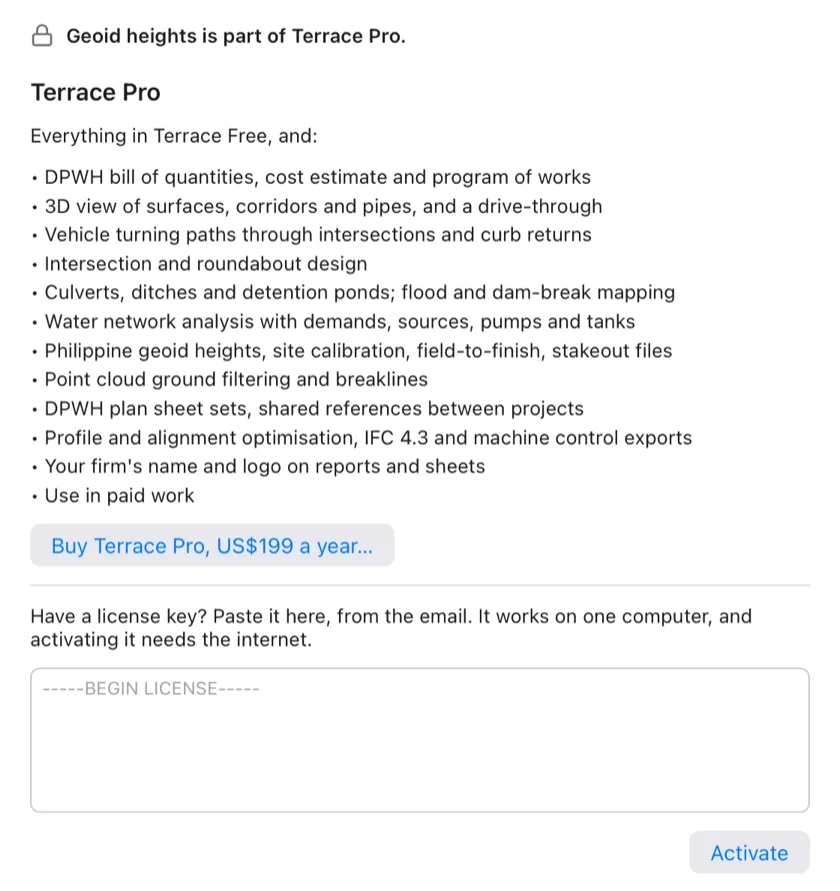
Activating Terrace Pro
Activating ties the license to this computer. It needs the internet.
- Choose Help ▸ Terrace Pro….
- Copy the whole license key from the email, from
-----BEGIN LICENSE-----to the end line, and paste it into the box under Have a license key?. - Click Activate. The button reads Activating… while Terrace asks the license service.
When it's done, the window says Terrace Pro is on, with the name and email on the license and the day it runs to. The locks leave the ribbon, the first button on each Pro tab now reads Terrace Pro, and the window's title says Terrace Pro. Pro tools work in every open project at once; you don't need to restart.
If something is wrong, a red line in the window says what: a key that isn't a Terrace key (a key for another Syncster app won't work), a key that has run out, a key in use on another computer, or no internet connection.
Staying on
Terrace checks the license with the license service in the background, about once a month, so the computer needs the internet now and then. If it can't check for a while (about six weeks), Pro turns off and the window says Terrace Pro checks your license online about once a month, and couldn't for a while. Connect to the internet and click Check Again.
Only a hash of the computer's hardware id is sent with the key, not the id itself.
Your firm on reports and sheets
With Pro, reports and sheets carry your firm's name and logo and the people who prepared and checked the work, instead of "Made with Terrace Free." You set these once, in the Terrace Pro window; they apply to every project on this computer.
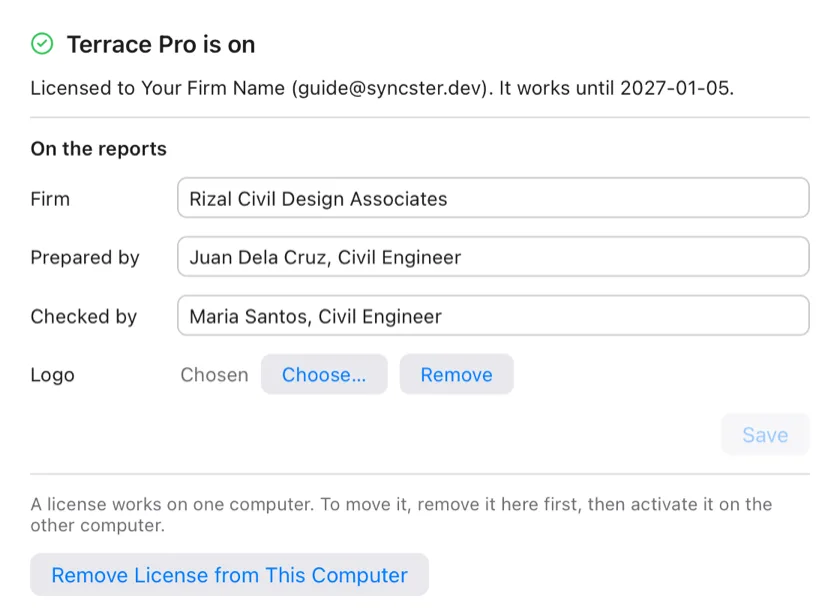
- Choose Help ▸ Terrace Pro…. Under On the reports:
- Type the Firm name, for example Rizal Civil Design Associates.
- Type Prepared by and Checked by as name and title, for example Juan Dela Cruz, Civil Engineer.
- For a logo, click Choose… next to Logo and pick a PNG or JPEG file. Terrace keeps its own copy, so you can move or delete the original. Remove takes the logo off.
- Click Save. (It's greyed out when nothing has changed. The logo is saved as soon as you choose it.)
On report PDFs
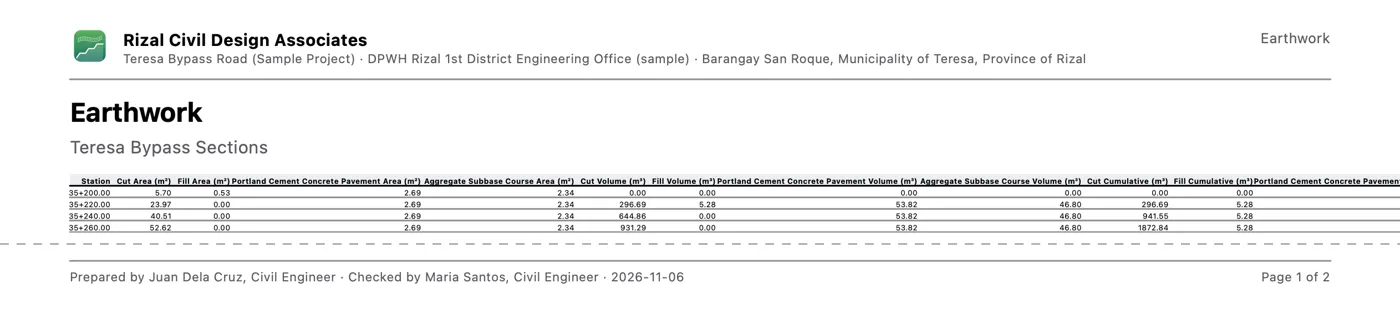
Every report saved with Save PDF… (see PDF reports), and the Pro documents such as the DED report, use these details on every page:
- The header has your logo and the firm's name, with the project name, client and location under it, and the report's title on the right.
- The footer says Prepared by … and Checked by … and the date, and the page number. If Prepared by is empty, the designer from Project Settings is used.
Without Pro, the header carries the project's name and number, and the footer says Made with Terrace Free. and the date.
On sheets
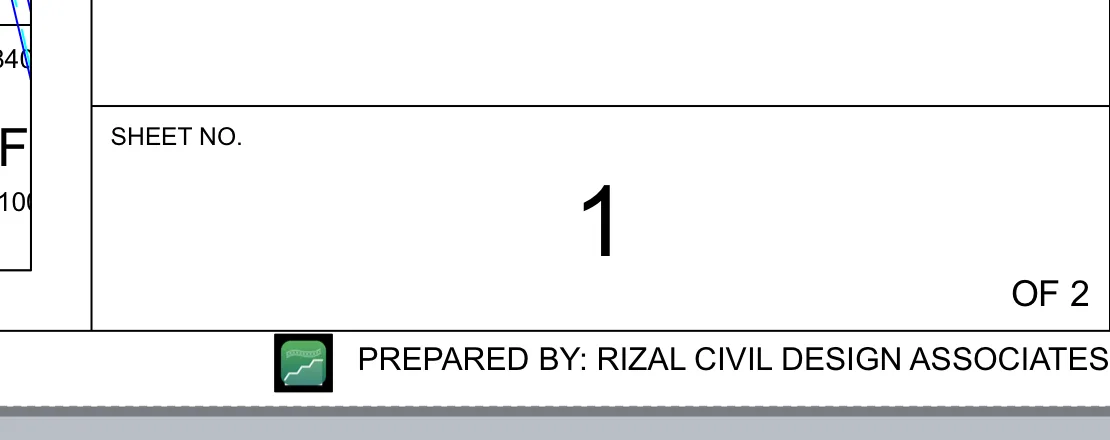
On the plan-and-profile and cross-section sheets that Sheets makes, Terrace adds PREPARED BY: and the firm's name in capitals, with the logo, just under the bottom right of the sheet border. It goes on as soon as you click Save in the Terrace Pro window, follows any later change to the firm or logo, and comes off if Pro is turned off. The DPWH plan set of Pro Output puts the firm in its own title block.
Moving the license to another computer
A license works on one computer at a time. To use it on another one, take it off this one first:
- Choose Help ▸ Terrace Pro… and click Remove License from This Computer.
- On the other computer, paste the same key and click Activate, as in Activating Terrace Pro.
Removing needs the internet too, so the license service knows the key is free. If there's no connection, Terrace still removes the license from this computer and says so; then email admin@syncster.dev to free the key.
The firm details under On the reports stay on the computer. Type them again on the new one.
When Pro isn't on
Pro turns off when the year runs out, when the license is removed, or when Terrace couldn't check it online for a while. Terrace is then Terrace Free again:
- Your projects still open, including those made with Pro tools. What the Pro tools drew (linework, swept paths, junctions, point clouds and so on) stays in the drawing, and the Pro data stays in the file.
- The Pro buttons get their locks back, and Pro commands open the Terrace Pro window.
- New report PDFs say "Made with Terrace Free." instead of naming your firm.
The Terrace Pro window then says Terrace Pro isn't on, with whom the key was for and its end date. It has Check Again (ask the license service again), Remove License from This Computer, and, when the license has run out, Renew Terrace Pro, US$199 a year…, which opens the website. Activate the new key the same way as the first.
The four Pro tabs
The Pro tabs sit after Sheets on the ribbon. Each starts with the Terrace Pro button, which opens the Terrace Pro window. The tools are also commands — see the Pro commands in the command reference — and many open a window of their own over the plan.
Pro Survey
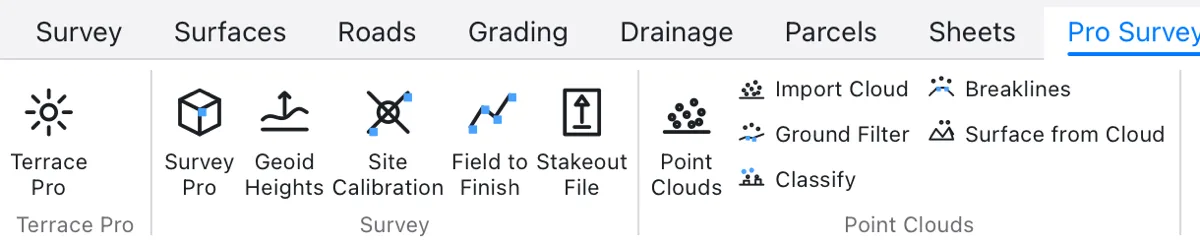
- Survey: Survey Pro (one window for all four tools), Geoid Heights, Site Calibration, Field to Finish, Stakeout File.
- Point Clouds: the Point Clouds window, Import Cloud, Ground Filter, Classify, Breaklines, Surface from Cloud.
All in Pro: survey and point clouds.
Pro Design

- Junctions: Junction Designer, Intersection, Roundabout, Junction Report.
- Turning Paths: Swept Path, Minimum Turn, Swept Path Report, Paths & Vehicles.
- Optimize: Optimize, Optimize Profile, Alternatives, Adopt Alternative.
- 3D: 3D View, Drive-Through, Exaggeration.
All in Pro: junctions, turning paths and optimisation.
Pro Analysis

- Hydraulics: Hydro, Culvert, Ditch, Detention Pond, Flood Map, Dam Break, Area–Capacity.
- Water Network: Water Analysis, Run Analysis, Demand, Reservoir, Tank, Pump, Valve, Results Hour, Import EPANET, Export EPANET.
All in Pro: hydraulics and water networks.
Pro Output
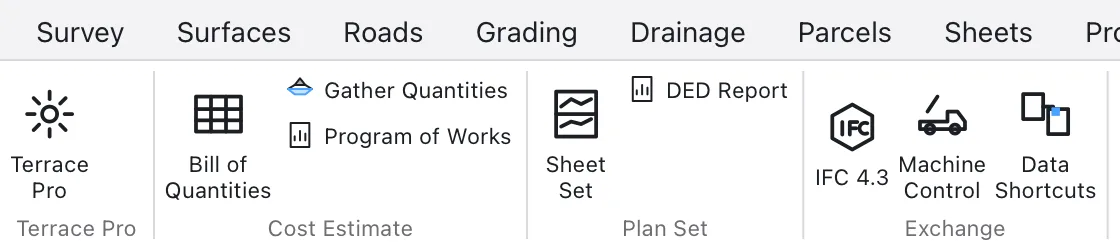
- Cost Estimate: Bill of Quantities, Gather Quantities, Program of Works.
- Plan Set: Sheet Set, DED Report.
- Exchange: IFC 4.3, Machine Control, Data Shortcuts.